No mobile data
No internet after installing an eSIM
Work through the mobile-data, roaming, network and APN checks in order.
Installed but no connection
Follow these steps in order. Menu names may vary slightly by phone and software version.
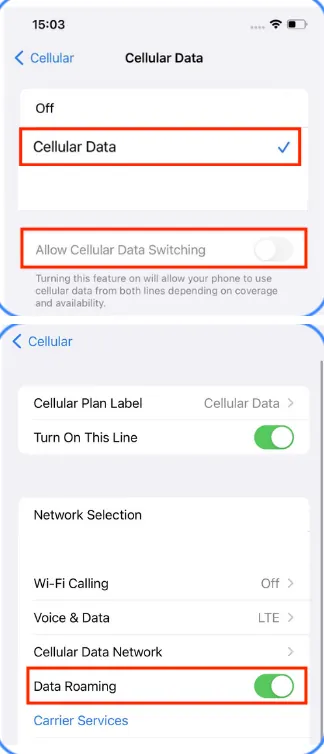
1. Turn on your Telroo eSIM
iPhone: Settings → Mobile Service (or Cellular) → Telroo eSIM → Turn On This Line
Samsung: Settings → Connections → SIM manager → Telroo eSIM → On
Then select Telroo for mobile data:
iPhone: Settings → Mobile Service (or Cellular) → Mobile Data → Telroo eSIM
Samsung: Settings → Connections → SIM manager → Mobile data → Telroo eSIM
2. Turn on Data Roaming
iPhone: Settings → Mobile Service (or Cellular) → Telroo eSIM → Data Roaming → On
Samsung: Settings → Connections → Mobile networks → Data roaming → On. If asked to choose a SIM, select Telroo.
Turn roaming on for the Telroo eSIM. Keep roaming off on your Australian SIM to avoid roaming charges from your Australian mobile provider.
Screenshot to attach: the Telroo eSIM’s Data Roaming setting.
3. Check for signal
Look for signal bars. If there is no signal, restart your phone and check again. First connection can take several minutes and, in some cases, up to an hour. Make sure you are in a country covered by your plan.
If you have signal but no internet, continue to Step 4.
4. Keep network selection on Automatic
iPhone: Settings → Mobile Service (or Cellular) → Telroo eSIM → Network Selection → Automatic → On
Samsung: Settings → Connections → Mobile networks → Network operators → Select automatically → On
Keep automatic selection on. Your phone will choose the network; you do not need to select one yourself.
Screenshot to attach: the network selection screen showing Automatic is on.
5. Check the APN settings
iPhone: Settings → Mobile Service (or Cellular) → Telroo eSIM → Mobile Data Network
Samsung: Settings → Connections → Mobile networks → Access Point Names
APN is usually set automatically. Do not guess or change its value unless your plan instructions tell you to. If the APN menu is unavailable, tell us in your reply.
Screenshot to attach: the APN settings for the Telroo eSIM.
Still no connection? Send us screenshots
If you've followed all the steps and still have no internet, take these screenshots on your phone:
- Data Roaming setting for your Telroo eSIM
- Network Selection, showing Automatic is on
- APN settings for your Telroo eSIM, if available
Then open your order page and upload them in the support form, with your current country and city and your phone model. You'll find the link to your order page in your delivery email.
Before uploading, make sure the screenshots don't show your QR code or activation code.
More details
Check the eSIM line and mobile data
Menu names vary by phone model and software version.
- Open your phone's Settings.
- Make sure your eSIM line is turned on.
- Set the eSIM as the line for Mobile Data or Cellular Data.
- Turn on Data Roaming for the eSIM.
- Wait a few minutes for the phone to connect.
Restart or select a network
- If there is no signal, restart your phone and check again.
- If you have a signal but no data, open the eSIM's Network Selection settings.
- Keep automatic selection on. Your phone will choose the network; you do not need to select one yourself.
Check APN settings
APN settings are usually set automatically. If your plan needs a specific APN, we will tell you.
On iPhone, open Settings, then Cellular or Mobile Data, select the eSIM, and look for Cellular Data Network.
On Android, open Settings, then Network & Internet or Connections, select the eSIM, and look for Access Point Names.
Only enter an APN when your plan instructions specify one. Menu names vary by phone model and software version.
If you cannot install the eSIM
- Check that your phone is carrier-unlocked and supports eSIM.
- Connect to a reliable internet connection while downloading the eSIM.
- Use the QR code on the device where you want to install the eSIM.
Some steps adapted from our eSIM network partner's documentation.
If it still does not connect, contact us with your order number and phone model.